CAMERA CAPTURE
Take a photo for EasyCut
Allow camera access, then frame the object clearly.
IMAGE AI / FIRST RELEASE
Free Background Remover Online
Use EasyCut AI to upload or capture a photo, click the object you want, and export a transparent PNG. The segmentation runs in your browser with MediaPipe Interactive Segmenter.
 PNG
PNG EXAMPLE RESULT
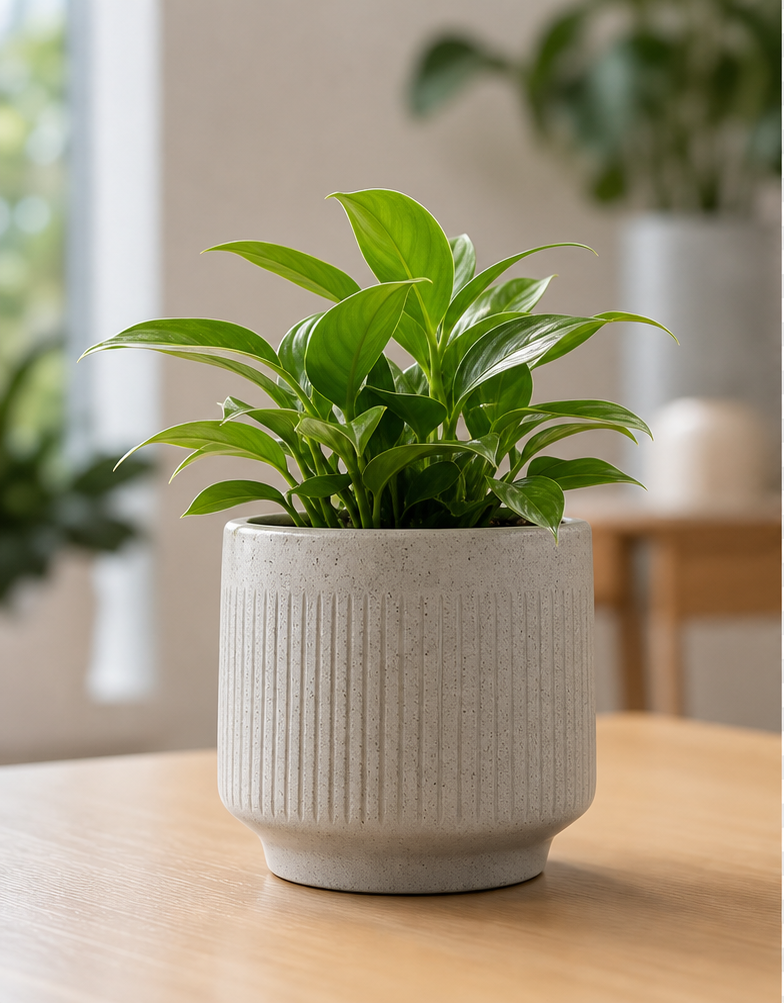
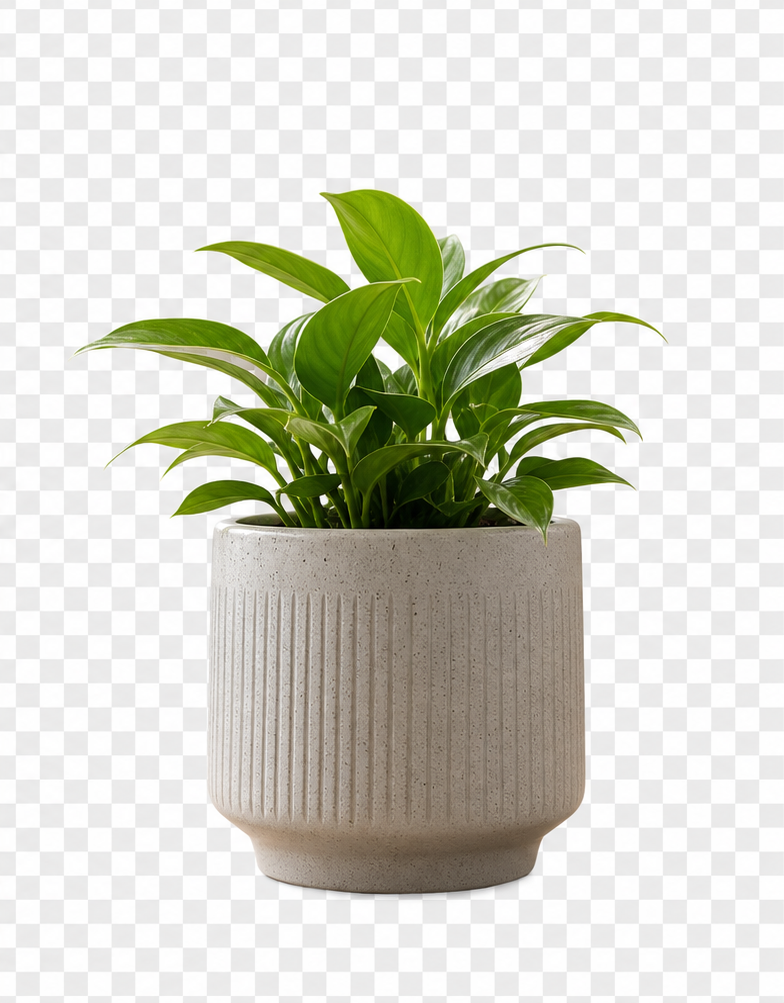
See what a quick object cutout can look like
EasyCut works best when the main subject is clear and separated from the background. This sample shows a simple object photo turned into a cleaner transparent-background asset for product cards, blog graphics, and quick design drafts.
Export Background
PRIVATE BROWSER TOOL
Remove image backgrounds without uploading to a server
EasyCut AI is built for quick product cutouts, profile assets, blog images, and marketplace photos. Choose an image, click the subject, refine the selection when needed, and download a PNG.
How to use it
- Upload a JPG, PNG, or WEBP image, or take a new photo with your camera.
- Click near the center of the object you want to keep.
- Use Add or Remove mode if the mask needs a quick touch-up.
- Download the result as a transparent PNG.
Best for
- Product photos for small shops and marketplaces.
- Blog graphics and social images.
- Simple object cutouts where one subject is clearly visible.
Browser-based workflow
Your cutout workflow runs in the browser with MediaPipe, so the page is built for quick tests without a heavy editing app.
Transparent PNG export
Keep the background transparent for product photos, profile assets, thumbnails, and design mockups.
Manual control when needed
Use Add and Remove modes when a single click needs a little correction around edges or small details.
Made for lightweight tasks
EasyCut is best for quick everyday cutouts rather than complex multi-layer professional editing.
USE CASES
Common ways to use EasyCut AI
EasyCut is designed for quick visual cleanup when you need a subject separated from its background. It works especially well for simple object photos, product listings, profile graphics, blog assets, presentation visuals, and design mockups.
BEST RESULTS
Photos that usually work well
- One main subject that is easy to see.
- Good lighting and clear edges.
- Simple backgrounds without too many competing objects.
- Subjects that are not heavily blurred or hidden by shadows.
LIMITATIONS
Photos that may need manual cleanup
- Hair, fur, glass, smoke, and other fine transparent details.
- Low-resolution or motion-blurred images.
- Objects that have nearly the same color as the background.
- Scenes with multiple overlapping subjects.
PRIVACY NOTE
Designed for local preview and export
EasyCut AI uses browser-based image processing for uploaded images and camera captures. That means you can try the tool without creating an account or sending a file through a custom Cravveo upload server for the basic preview and PNG export flow.
FAQ
Is EasyCut AI free?
Yes. The current version is free to use while Cravveo tests lightweight browser-based AI tools.
Does my image get uploaded?
No server upload is needed for the cutout workflow. Uploaded files and camera captures stay in your browser while the segmentation runs with MediaPipe.
Can I download a transparent PNG?
Yes. Keep the transparent export background selected and use Download PNG.
What images work best?
Images with a clear object, visible edges, and a simple background usually produce the best cutout.
What images are harder to cut out?
Very blurry photos, transparent objects, hair-like edges, heavy shadows, and crowded scenes can be harder for the model to separate cleanly.
Can I use EasyCut AI for product photos?
Yes. EasyCut AI is useful for quick marketplace, catalog, thumbnail, and social product image drafts. Review the final result before using it in a listing or campaign.
Does EasyCut AI replace professional photo editing?
No. It is built for fast browser-based cutouts and drafts. Complex commercial images may still need manual review or a professional editor.